
How to Beautify, Validate, and Debug JSON Data Quickly
An API response comes back as a single unbroken line of text, hundreds of characters with no spacing, no line breaks, no visual structure. Technically, it's all there, but reading it directly to find a specific value or spot a missing comma is slow and error-prone. That's the exact problem a JSON formatter solves.
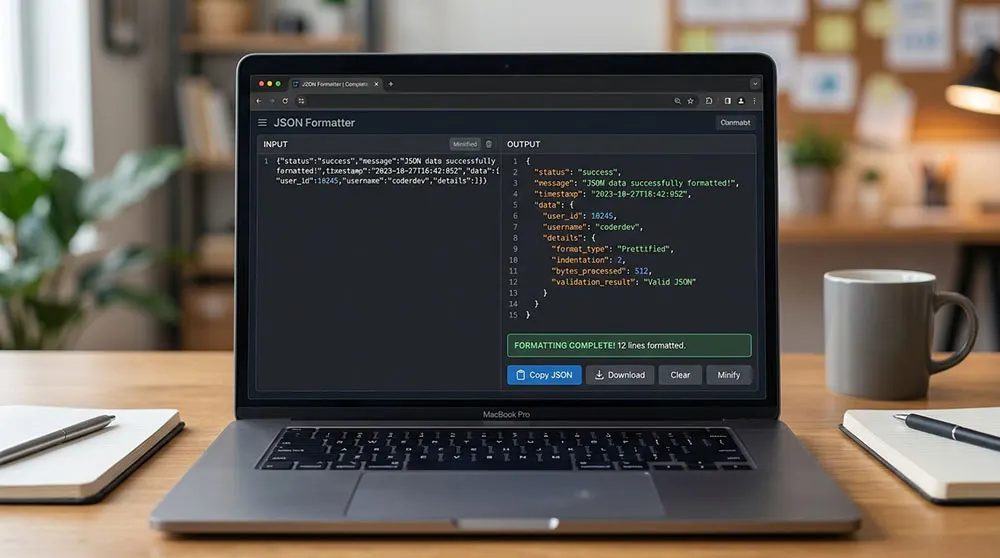
A JSON formatter tool takes raw or minified JSON data and restructures it with proper indentation, line breaks, and spacing, turning a wall of compressed text into something that can actually be read and debugged quickly. Most modern tools also validate the data along the way, catching syntax errors before they cause bigger problems downstream.
This guide covers what JSON is, how a formatter actually processes data behind the scenes, the difference between pretty-printed and minified output, how to use one effectively, and which tools are genuinely worth using for different situations.
What Is JSON
JSON JavaScript Object Notation is a lightweight data-interchange format created by Douglas Crockford. It's designed to be human-readable text that's also straightforward for machines to parse, which is why it became the standard format for APIs and web services, largely replacing the more verbose XML format in AJAX-style communication between browsers and servers.
JSON's appeal comes down to a few practical qualities: it's supported by essentially every modern programming language, it enables efficient asynchronous communication between clients and servers, and its structure objects, arrays, and key-value pairs maps naturally onto how most application data is actually organized.
The tension is that JSON optimized for machines and JSON optimized for humans look very different. APIs frequently return minified JSON, with all unnecessary whitespace stripped out to reduce payload size and improve transfer speed. That's efficient for a machine parsing it, and genuinely difficult for a person trying to read it directly.
How a JSON Formatter Actually Works
The process behind a formatter is more deliberate than it might appear from the outside. It isn't just inserting spaces randomly; it's parsing the data structurally, checking it against JSON syntax rules, and then rebuilding it in a readable form.
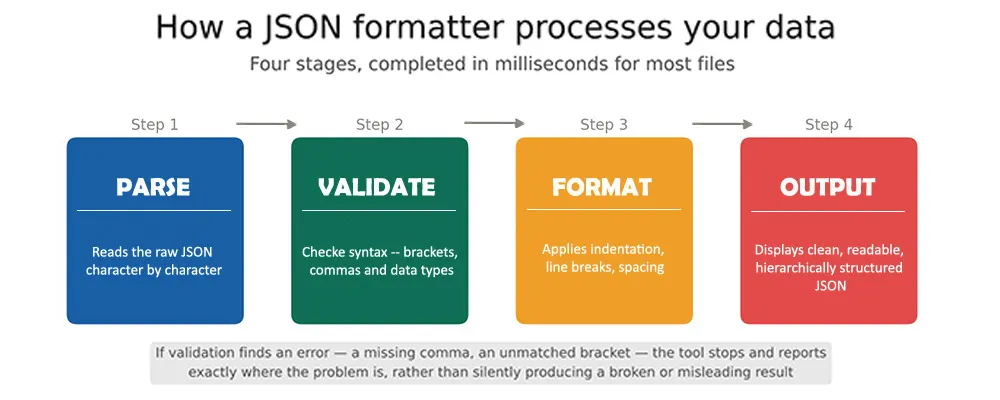
Figure 1: The four-stage process behind a JSON formatter. Validation happens before formatting — if the syntax is broken, the tool reports exactly where, rather than trying to format invalid data.
The tool reads the input character by character, checking for syntax correctness as it goes: matched brackets, properly placed commas, valid data types. If it finds a problem, a good tool reports the specific location rather than failing silently, which is often the most valuable part of the whole process during actual debugging. Once validation passes, the formatter applies indentation, line breaks, and spacing to produce the readable output.
Many modern tools do this in real time as text is typed or pasted into one panel; the formatted version updates instantly in another, which is genuinely useful when actively testing or modifying an API response rather than formatting a static file.
A Worked Example — Raw vs. Formatted
Seeing the transformation directly makes the value obvious in a way that description alone doesn't quite capture.
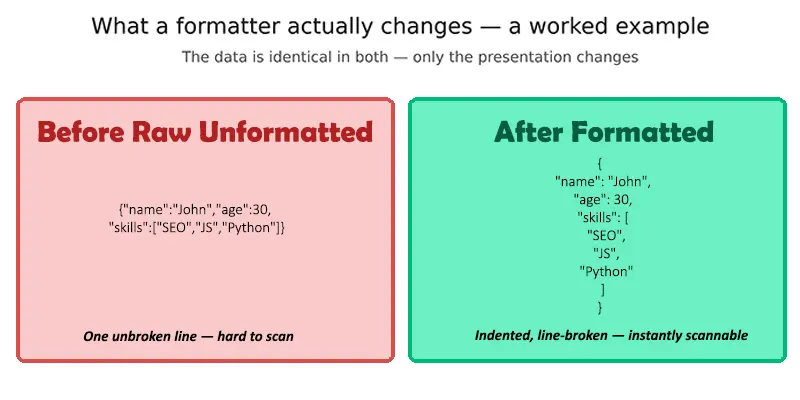
Figure 2: The underlying data is identical in both versions — only the presentation changes. The formatted version makes the structure — an object containing a name, an age, and an array of skills — immediately visible.
Scaled up from three fields to the hundreds of nested fields a real API response often contains, this difference stops being cosmetic and becomes the difference between debugging in minutes versus debugging in an hour of squinting at unbroken text.
Pretty-Printed vs. Minified JSON
These are two different outputs for the same underlying data, each suited to a different audience, and a capable formatter tool moves between them easily.
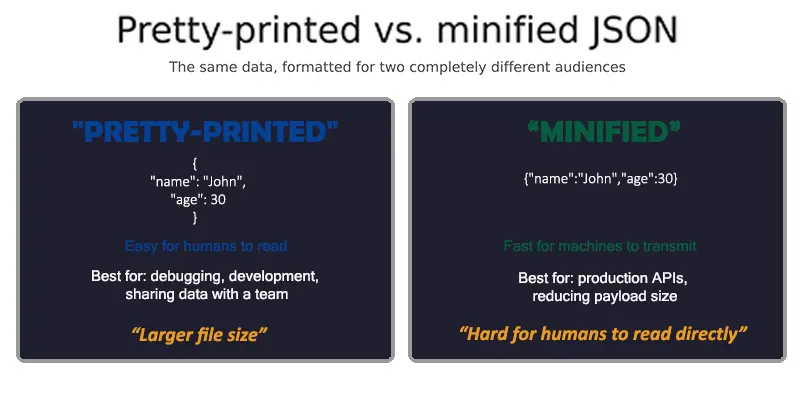
Figure 3: Pretty-printed JSON is built for human readability during development and debugging. Minified JSON strips that readability in exchange for a smaller file size — the right trade-off for production traffic, the wrong one for someone trying to read the data directly.
Pretty-printed JSON includes indentation, line breaks, and spacing ideal for debugging, sharing data with a team, or documenting an API response. Minified JSON strips all of that out, reducing file size for faster transfer the standard choice for production environments where transfer speed genuinely matters and no human needs to read the raw payload directly. The practical workflow most developers use: work with pretty-printed JSON during development, then minify before deployment.
Formatter, Validator, and Viewer
Three Distinct Functions
These terms get used almost interchangeably, but they describe different specific functions, even though the best tools bundle all three together.
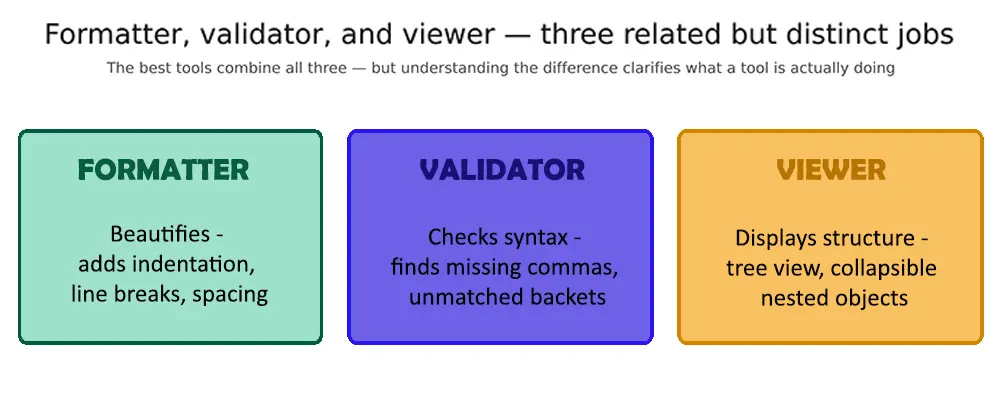
Figure 4: A formatter beautifies. A validator checks correctness. A viewer displays structure interactively. Understanding which one a specific feature is doing clarifies what a tool is actually offering.
A formatter's job is purely presentational, adding indentation and spacing without changing the underlying data. A validator's job is correctness: confirming the JSON follows valid syntax and flagging specific errors like missing commas or unmatched brackets. A viewer's job is navigation, typically a tree view that lets nested objects and arrays be expanded and collapsed like folders, which becomes genuinely important once a payload grows past a few dozen fields.
How to Use a JSON Formatter
- Step 1 — Get the JSON into the tool. Paste it directly, upload a .json file, or in some tools, fetch it directly from a URL.
- Step 2 — Run format and validate together. Formatting alone only improves readability; validation confirms the data is actually syntactically correct. Using both is the right default, not an optional extra step.
- Step 3 — Review any flagged errors. A good tool highlights the specific line and often the specific character where a syntax problem occurs, rather than a generic "invalid JSON" message.
- Step 4 — Use tree view for large or deeply nested data. Expanding and collapsing sections makes a large payload manageable in a way that scrolling through flat text doesn't.
- Step 5 — Export or copy the result. Most tools support both copying the formatted output directly and downloading it as a file.
The entire process, for a typical API response, takes well under a minute; the time investment is trivial relative to the debugging time it saves.
Practical Use Cases

Debugging API responses is the most common use case. A response that's technically readable at 50 lines becomes genuinely unreadable at 500; formatting turns it back into something a person can actually scan for the specific field or value they're looking for.
Structured data for SEO — JSON-LD schema markup used for rich results in search needs to be syntactically correct to work at all. A formatter and validator used together catches syntax errors before they silently prevent structured data from being recognized by search engines.
Data migration between systems benefits from consistently formatted JSON, since clean, predictable structure reduces the chance of integration errors when data moves between different platforms or services.
Team collaboration is easier with formatted JSON; sharing a minified blob of data with a colleague creates friction that a formatted, readable version simply doesn't.
Choosing the Right Tool for the Situation
For sensitive data specifically, using an offline tool rather than a web-based one is worth the extra step. A browser-based formatter typically processes data through its own server, which is an unnecessary exposure for anything genuinely confidential.
Real Tools Worth Knowing

JSONLint — a straightforward, browser-based formatter and validator, well suited to quick checks without any setup.
CodeBeautify — offers tree view, minification, and format conversion alongside standard formatting, useful for slightly more involved tasks.
JSON Editor Online — supports interactive editing and tree-view navigation, better suited to larger or more complex JSON structures.
VS Code — built-in JSON formatting plus extensions for validation and schema checking, the standard choice for developers already working in an editor.
Postman — automatically formats API responses during testing, which makes it a natural fit for anyone doing regular API development work.
Firefox JSONView / Chrome JSON formatter extensions — automatically format JSON directly in the browser when navigating to a raw JSON URL, useful for quick inspection without leaving the browser.
Common JSON Formatting Errors

- Missing commas between key-value pairs or array elements are among the most frequent syntax errors, and often the hardest to spot by eye in unformatted data.
- Incorrect quotes — JSON requires double quotes around keys and string values; single quotes are invalid and will cause a validation failure.
- Unmatched brackets or braces — every opening bracket needs a corresponding closing one; formatting tools with indentation make these mismatches considerably easier to spot visually than scanning raw text.
- Trailing commas — a comma left after the last item in an object or array is valid in some languages but invalid in strict JSON, a common source of confusion for developers coming from JavaScript specifically.
FAQ's
What is a JSON formatter tool?
A tool that restructures raw or minified JSON data with proper indentation, line breaks, and spacing to make it human-readable. Most also validate the syntax, flagging errors like missing commas or unmatched brackets.
What's the difference between a JSON formatter and a JSON validator?
A formatter improves readability by restructuring the presentation. A validator checks whether the JSON is syntactically correct. They're frequently bundled together, but they perform genuinely different functions: formatting doesn't confirm correctness, and validation doesn't improve readability.
Is it safe to use an online JSON formatter for sensitive data?
For genuinely sensitive or confidential data, no avoid browser-based tools, since the data is typically processed through the tool's own server. Use a local, offline tool like VS Code instead, where the data never leaves the device.
Can a JSON formatter fix errors automatically?
It can detect and highlight errors precisely, but it generally can't fix them automatically. Invalid JSON usually requires a manual correction, such as adding a missing comma or removing a trailing one, once the tool has identified where the problem is.
What is minified JSON, and when should it be used?
Minified JSON has all unnecessary whitespace removed, reducing file size for faster transfer. It's the standard choice for production environments and live API responses, where transfer speed matters and no person needs to read the raw data directly.
Do JSON formatter tools work on mobile devices?
Most browser-based JSON formatters work on mobile browsers without any additional installation, since they're standard web applications rather than platform-specific software.
Can JSON be converted to other formats like XML or CSV?
Yes, many formatter tools include conversion features alongside formatting, supporting common conversions like JSON to XML or JSON to CSV for situations where the data needs to move into a different system or format.
What causes JSON to break after formatting?
Formatting itself doesn't break valid JSON; a formatting tool applied to genuinely invalid JSON will surface the underlying problem rather than cause it. Common root causes are missing commas, incorrect quote types, or unmatched brackets that existed in the data before formatting was applied.
Conclusion
A JSON formatter solves a narrow, specific, and genuinely common problem: turning data that's technically complete but practically unreadable into something a person can actually work with. The mechanism parse, validate, format, display is consistent across virtually every tool, whether it's a simple browser-based formatter or a full-featured code editor.
The key distinction is that formatting and validation are different operations doing different jobs; using both together, rather than assuming one implies the other, confirms a piece of JSON is both readable and correct. For sensitive data, that combination belongs in a local, offline tool rather than a browser-based one.
Whether you're debugging an API response, preparing structured data for SEO, or just making a config file readable again, the right formatter turns a frustrating wall of text into something usable in seconds rather than minutes.